Publishing to WebGL Platform
Due to the many specificities of the WebGL platform, this document specifically describes how to publish to the WebGL platform. This document demonstrates the publishing process on the hybridclr_trial project (github gitee).
All currently supported Unity versions no longer require global installation, which means the build process for the WebGL platform is exactly the same as other platforms. The global installation instructions retained in this document are for special cases only.
Preparation
Beginners should at least read the Quick Start documentation and have mastered the publishing process for platforms like Win or Android.
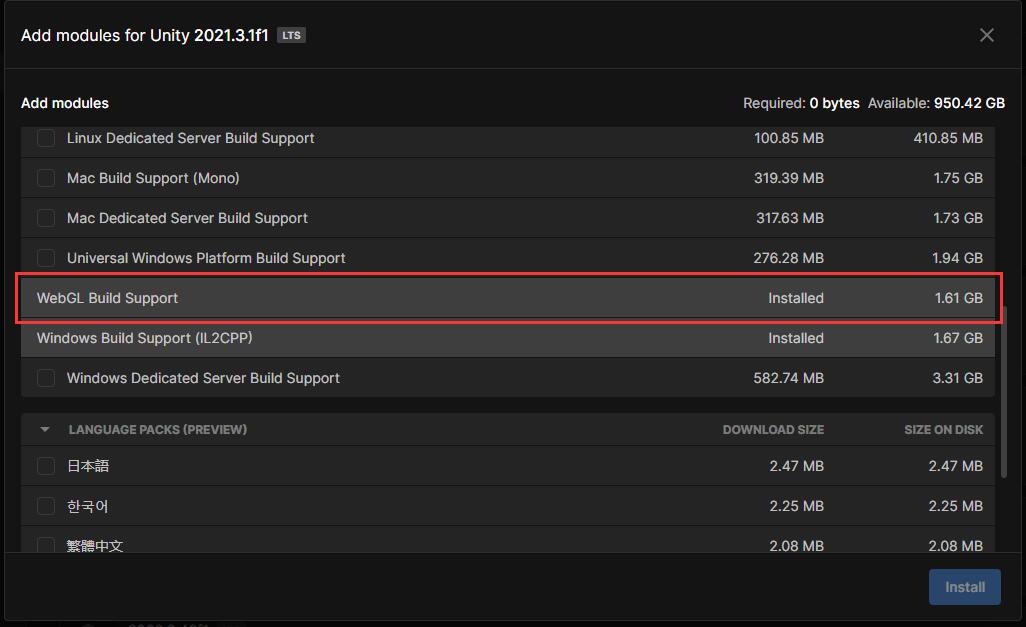
- Ensure Unity Editor has the WebGL module installed, as shown below
- Complete HybridCLR installation and setup according to the install documentation
- Currently supported Unity versions do not need to enable the
Use Global Il2cppoption in HybridCLRSettings, as the WebGL platform supports local installation
Appendix: Create Symbolic (Hard) Link from Editor Directory libil2cpp to Local libil2cpp Directory
All currently supported Unity versions support local installation, so this link is not needed. This section is retained only for special scenarios that require global installation.
When upgrading hybridclr or other situations requiring reinstallation, first restore the original libil2cpp directory in the Editor installation directory, then re-establish the link according to the following instructions.
Windows Platform
Developers unfamiliar with command line should first master basic command line usage.
- Open command prompt with administrator privileges. This operation varies by operating system version, please handle accordingly. In Win11,
right-click on the Start menu and select Terminal Administrator menu item. - Run
cd /d {editor_install_dir}/Editor/Data/il2cppto switch to the il2cpp directory in the installation directory - Run
ren libil2cpp libil2cpp-originto rename the original libil2cpp to libil2cpp-origin - Run
mklink /D libil2cpp "{project}/HybridCLRData/LocalIl2CppData-{platform}/il2cpp/libil2cpp"to create a symbolic link from the Editor directory libil2cpp to the local libil2cpp directory
macOS or Linux Platform
- Open command line window
- Run
cd /d {editor_install_dir}/Editor/Data/il2cppto switch to the il2cpp directory in the installation directory. The specific directory may vary by operating system, please handle accordingly - Run
mv libil2cpp libil2cpp-originto rename the original libil2cpp to libil2cpp-origin - Run
ln -s "{project}/HybridCLRData/LocalIl2CppData-{platform}/il2cpp/libil2cpp" libil2cppto create a symbolic link from the Editor directory libil2cpp to the local libil2cpp directory
Packaging
- Run
HybridCLR/Generate/All - Run
HybridCLR/Build/BuildAssetsAndCopyToStreamingAssets. Note! This menu is added by thehybridclr_trialproject and is not a built-in command from the hybridclr package. - In
Build Player, runBuild And Run